
Track volunteer hours
🔵 VirtualCallboard
Yes. Schedule volunteers into calls, enter their attendance, and run an hours report. It works for drop-in shifts too, since each call can be as short or as flexible as you like.
You'll need a role that can add calls and enter attendance, and for the hours report, the Attendance Administration permission.
Set it up
- Create a call type for each area you want to track, such as Volunteer - Scenery, Volunteer - Costumes and Volunteer - Lights. Hours are easy to add up by area when the names start the same way.
- Decide where the calls will live. You can add them to each show's production, or to one production called "Volunteers." A single Volunteers production makes it easier to total hours across every show.
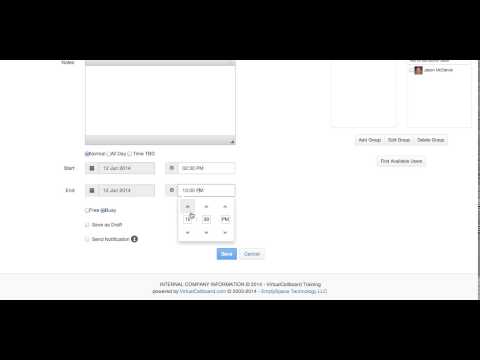
- Go to Schedule > View Schedule and click Add Call. Name the call for the work being done (for example, Scenery - The 39 Steps), choose the call type, add a space if you like, and set the start and end to the time they actually worked.
- Under Call Users, select every volunteer who was there, then save.
Record the hours
- When the shift starts, open the call on the schedule and click Enter Attendance. If you can't find the call, check that the production filter is set to the right production and that you're viewing All Calls.
- Mark each volunteer On Time, or choose Not On Time and pick Late and the minutes. Click Save.
- Go to Schedule > Attendance > Attendance Administration. Under Calculate Hours, pick the people, set the Work Week Start and Work Week End, and click Create Hours Report.
You'll see a row for each person with their hours for each day and a total. The report counts calls marked On Time or Late (minus the late minutes), and only calls that start and end inside the dates you chose. Absences and Left Early aren't counted, so for a short shift, set the call's times to match the hours actually worked.
Anyone whose role includes Attendance Administration can run the report for the people in their productions.